Safe Shutdown
In this tutorial, we will shut down your FRAME machine without causing data corruption on your FRAME when unplugging it from power.
Shut down the operating system
First, let's open the FRAME's landing page in your web browser (we learned how to do this in the First Connection tutorial):
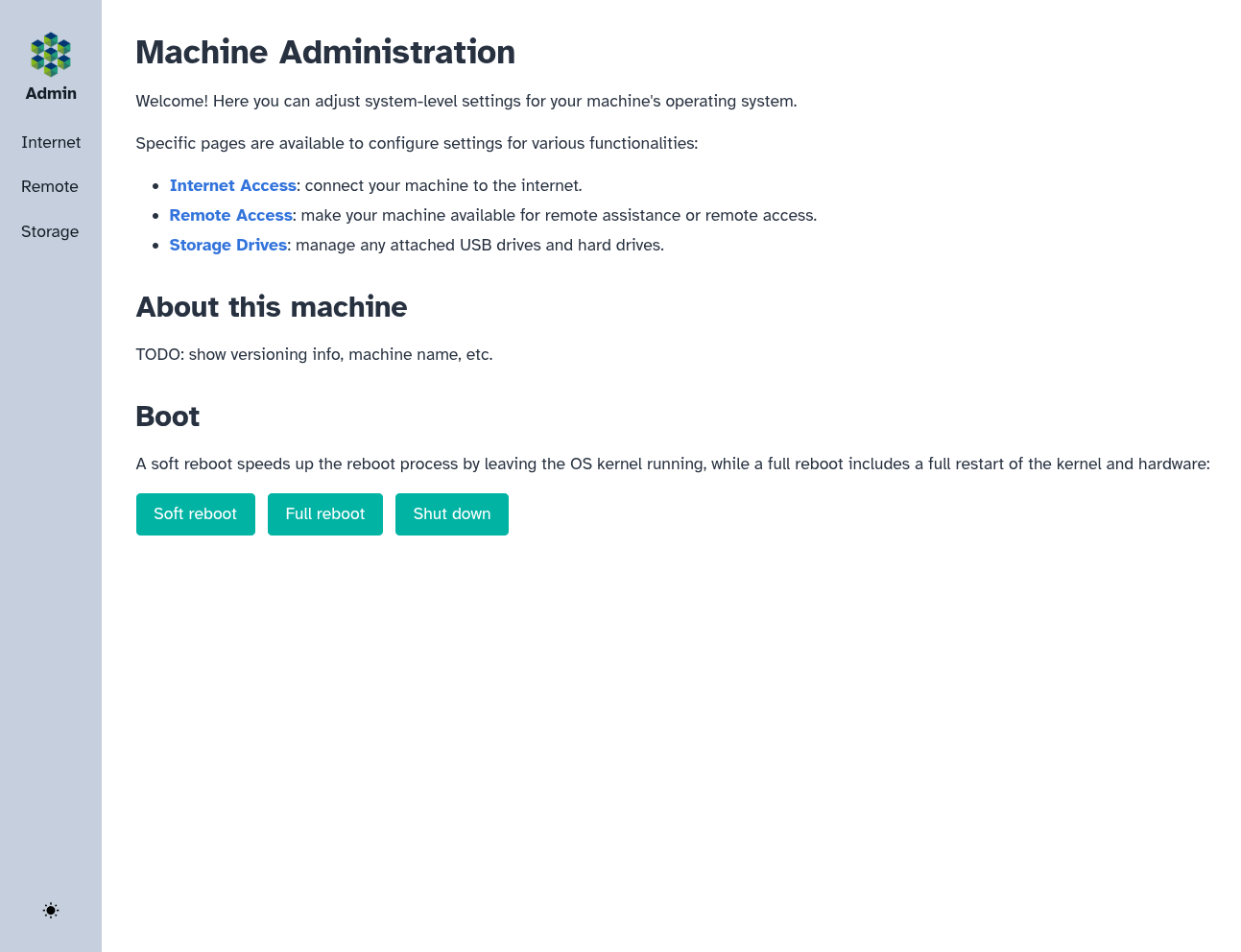
In the screenshot above, we can see three buttons: "Soft reboot", "Full reboot", and "Shut down". These buttons allow you to reboot or shut down the operating system which is running on your FRAME's RPi computer; the operating system, called "openUC2 OS", is responsible for:
- running all software on your FRAME
- managing your FRAME's data storage devices and network interfaces
Now press the "Shut down" button to shut down the operating system. When you do this, the operating system will:
- finish writing and saving any files it was in the middle of creating/modifying, to avoid data loss or data corruption
- clean up after itself
This shutdown process will usually be complete within 30 seconds. Afterwards, it will be safe to unplug power from your FRAME.
Unplug power
Now we will fully cut off power by unplugging the power adapter from the FRAME's power jack, which we had previously seen in the first connection tutorial. Remove the power adapter's plug from the FRAME's power jack:
| Before | After |
|---|---|
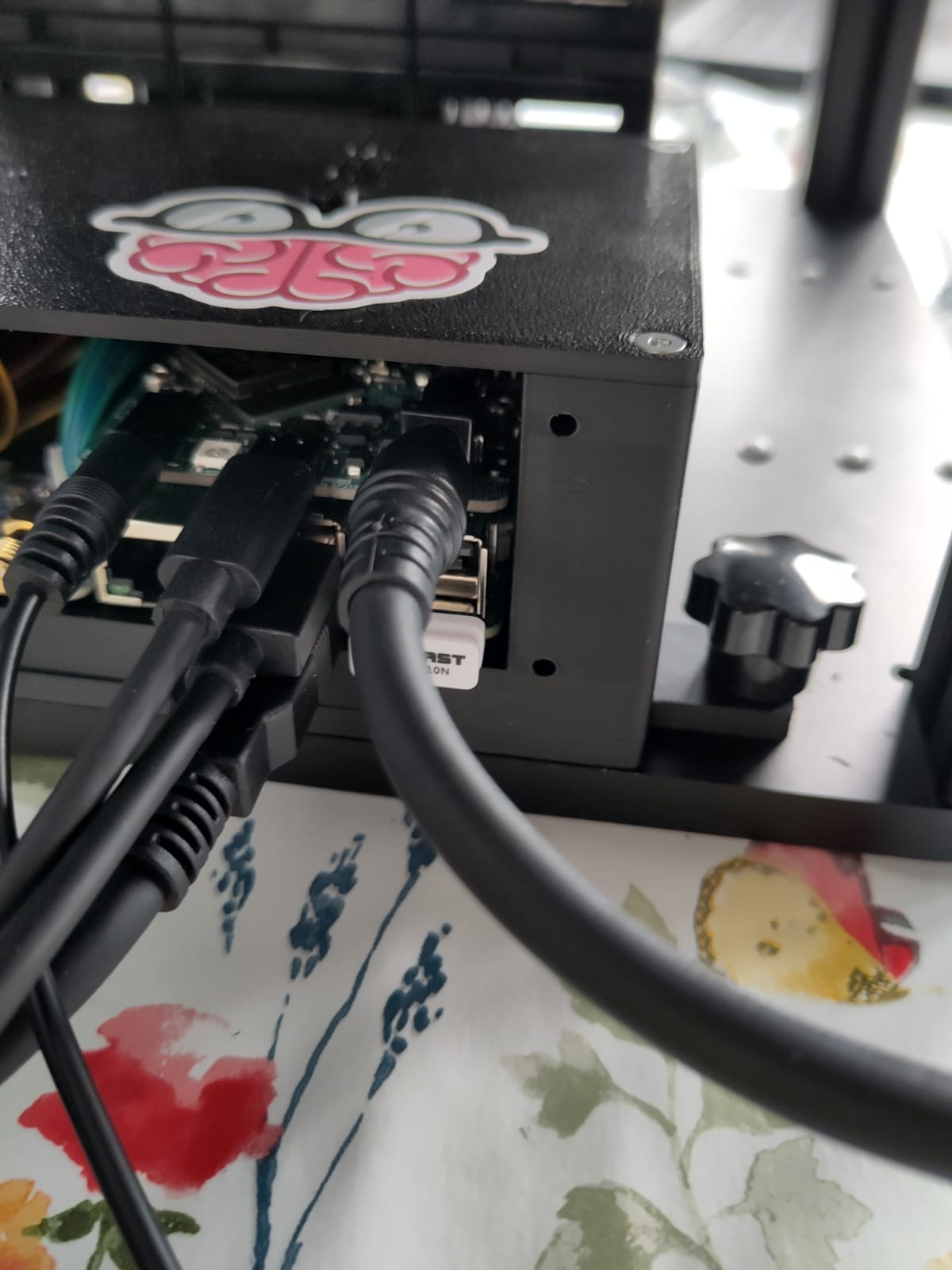 | 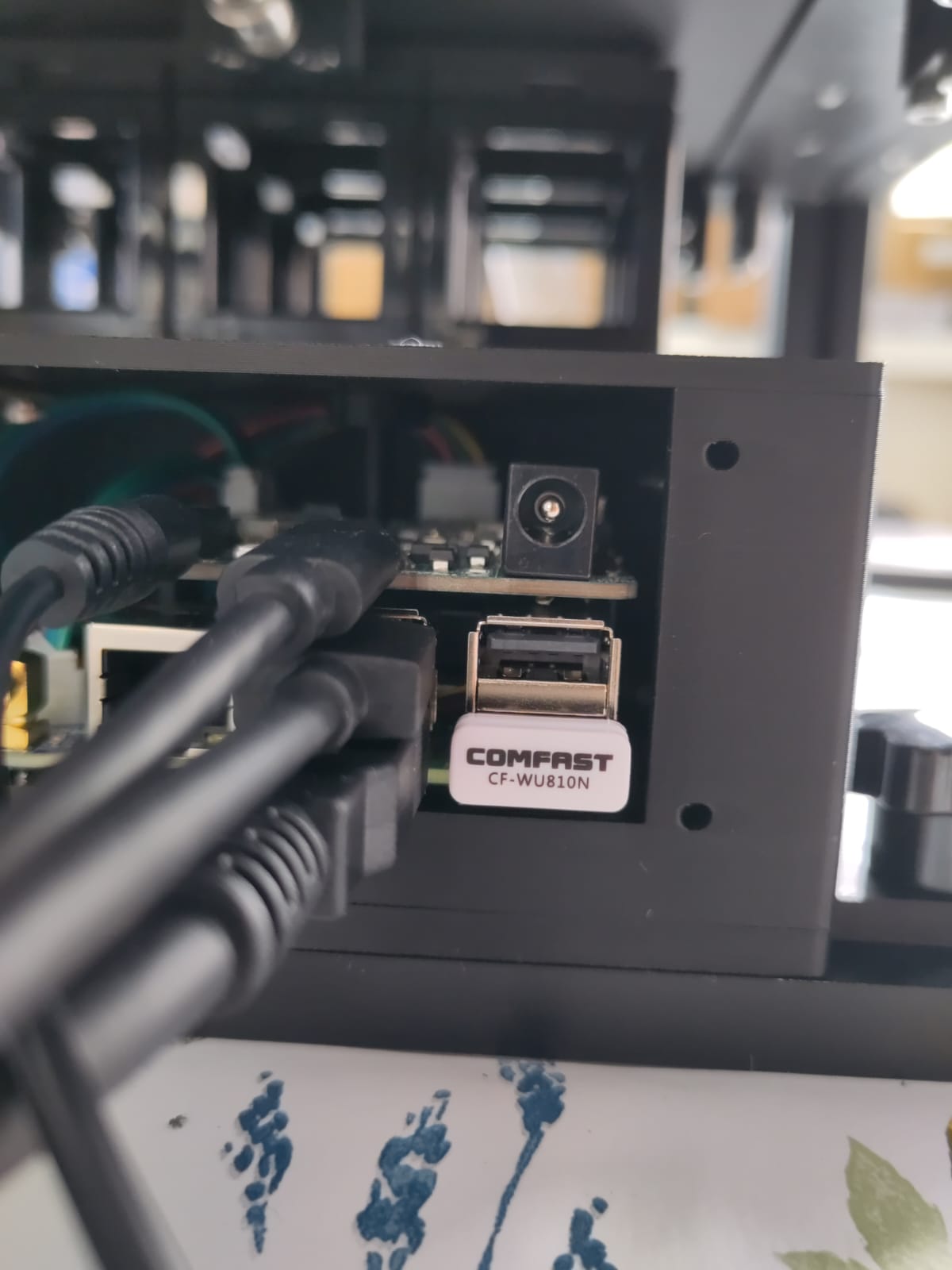 |
Turn on the FRAME again
Now we'll turn on the FRAME again, since you'll need it to be powered on for the day-2 tutorials.
Plug in power to your FRAME and watch the statuses of its indicator LED, in the same way as we learned in the first connection tutorial.
What's next
Congratulations! We've finished the day-1 tutorials for learning about the basics of how to set up and operate your FRAME.
Now we're ready to continue to the day-2 tutorials to learn how to perform various routine tasks with the FRAME, including more efficient ways to acquire data on the FRAME.